
Spell check suggesting words in the wrong language in Word or Outlook?
If Word or Outlook flags ordinary English words and suggests replacements from another language, extra Office editing languages are a common cause. Here is how to check and fix it.
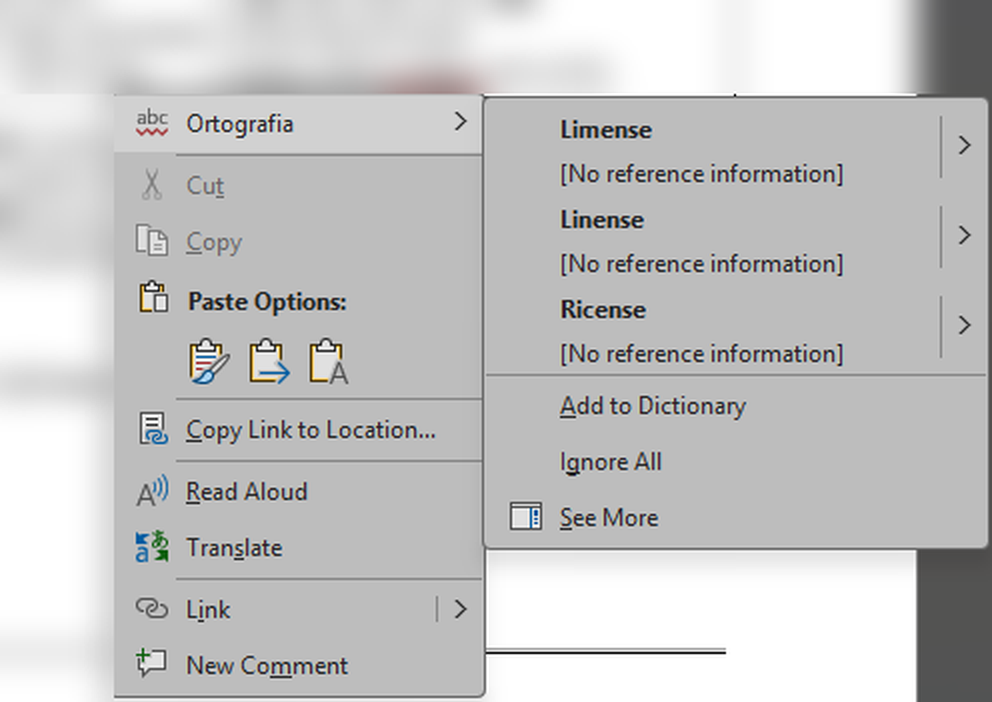
The other evening a client emailed me a puzzle. Word kept flagging "License" as misspelled, and the spell-check menu had switched to Portuguese. He figured it would be a real challenge, and he was sure it was a bug buried deep inside Microsoft.
Honestly? Not a bad guess.
That evening we connected to his computer through our remote management tools, found the problem, and fixed it. Three extra editing languages had been quietly switched on, so Word sometimes decided an English paragraph was Portuguese.
His reply: "How much time did you spend on this?" My answer: about five minutes. But having the systems in place, and the know-how to find it that fast? That took a lifetime.
It reminds me of the old story about the ship that wouldn't run. The expert came in, tapped on a few spots, tightened one bolt, and it fired right up. Then he sent a $10,000 bill: "$1 for the tap. $9,999 for knowing where to tap."
Here's where to tap, in case it happens to you.
Symptoms
- Spell check underlines ordinary English words, like "License", as misspelled.
- When you right-click a flagged word, the spelling menu shows another language's label (in the screenshot above it's Ortografia, Portuguese for "spelling"). The suggested replacements come from that language.
- It may come and go, showing up in some documents or emails and not in others.
Cause
Microsoft Office keeps a list of the languages you write in. When extra languages are turned on, for example after a language pack was installed, Word and Outlook can decide your text is in one of those languages and check it with the wrong dictionary.
In my client's case, Office had three extra editing languages turned on alongside English. Removing them so that English was the only editing language, and the preferred one, fixed the problem.
Fix, step by step
These steps are for the Windows desktop versions of Word and Outlook in Microsoft 365. The language list is shared across the Office apps, so fixing it in Word also fixes it in classic Outlook.
- Open Word.
- Go to File > Options > Language.
- Under Office authoring languages and proofing, find English (United States) (or the language you write in). If it isn't already at the top of the list in bold, select it and choose Set as Preferred.
- Select each language you don't write in and choose Remove.
- Select OK, then close and reopen Word and Outlook. The change applies the next time the apps start.
- Fix text that's already flagged. In the document, or in an email you're writing in classic Outlook, press Ctrl+A to select everything, go to Review > Language > Set Proofing Language, choose English (United States), and select OK.
Using the new Outlook for Windows? It handles spelling languages separately. While writing an email, select the ... (more options) menu, then Editor > Editor Settings > Manage spellcheck languages, and make sure the language you write in is listed. Microsoft notes that a language you choose there applies to that email draft.
If these options are grayed out, or the extra languages keep coming back, your organization may manage Office language settings centrally. Send us a text and we'll take a look.
Prevention
- Only add Office languages that someone actually writes in.
- After setting up a new computer or reinstalling Office, check File > Options > Language to make sure only the right languages are listed.
- If you do write in more than one language, keep the list limited to those languages. When a document is flagged in the wrong one, set its proofing language as described in step 6.